How to connect devices to the communication port of a Crane Controller?
 Language
 Français
 Español
 Árabe
Árabe
 Deutsch
 简体中文
简体中文
 Português
 Русский
 日本語
日本語
 한국어
한국어
 हिंदी
हिंदी
 Prancis
 Türkçe
 Tiếng Việt
 Italiano
 ไทย
ไทย

-
Tel
+86 15275228746
-
WhatsApp/WeChat
8615275228746
Blog
Company intro
10000m 2+ Cover Area QINGDAO TOP RUN INTERNATIONAL TRADE CO., LTD Qingdao Top Run International Trade Co., Ltd. has been a professional and leading supplier of construction machinery spare parts in China for over 15 years. With extensive experience and expertise, we have established strong partnerships with top manufacturers to offer a wide range of genuine and OEM parts for brands such as XCMG, SANY, ZOOMLION, SHANTUI, LIUGONG, and more. 80+ Employees View more Looking for properate products? Contact us
Send Message
How to connect devices to the communication port of a Crane Controller?
Jul 2, 2025
View: 224
Hey there! As a supplier of Crane Controllers, I often get asked about how to connect devices to the communication port of a Crane Controller. It's a crucial process that can significantly impact the performance and functionality of your crane. In this blog, I'll walk you through the steps, share some tips, and also mention some related spare parts that might come in handy.
Understanding the Crane Controller Communication Port
First things first, let's talk about what the communication port on a Crane Controller is all about. The communication port is like a gateway that allows different devices to talk to the controller. It's the interface through which data is transmitted and received, enabling the crane to operate smoothly and efficiently.
There are different types of communication ports, such as serial ports, Ethernet ports, and USB ports. Each type has its own advantages and is suitable for different applications. For example, serial ports are great for simple, low - speed data transfer, while Ethernet ports offer high - speed communication over a network.
Preparing for Device Connection
Before you start connecting any devices, it's important to do some preparation.
Check the Compatibility
Make sure the device you want to connect is compatible with the Crane Controller. This includes checking the communication protocol, voltage requirements, and physical connections. For instance, if your Crane Controller uses a Modbus protocol, the device you connect should also support Modbus.
Gather the Necessary Tools
You'll need some basic tools for the connection process. These might include screwdrivers (if you need to open the controller or device enclosures), cable ties to organize the cables, and a multimeter to check for proper electrical connections.
Power Off the System
For safety reasons, always power off the Crane Controller and the device you're connecting before making any physical connections. This will prevent any electrical shorts or damage to the equipment.
Connecting Devices to the Communication Port
Now, let's get into the actual connection process.
Serial Port Connection
If you're using a serial port, follow these steps:
- Identify the Serial Ports: Locate the serial ports on both the Crane Controller and the device. They usually have a 9 - pin or 25 - pin connector.
- Choose the Right Cable: Select a serial cable that matches the connectors on both the controller and the device. Make sure the cable is long enough to reach without being stretched too much.
- Connect the Cable: Plug one end of the serial cable into the serial port of the Crane Controller and the other end into the serial port of the device. Secure the connectors with the locking screws if available.
- Configure the Settings: Once the physical connection is made, you'll need to configure the serial communication settings. This includes setting the baud rate, data bits, stop bits, and parity. These settings should match on both the controller and the device.
Ethernet Port Connection
For an Ethernet connection:
- Find the Ethernet Ports: Locate the Ethernet ports on the Crane Controller and the device. They are usually RJ - 45 connectors.
- Use an Ethernet Cable: Connect one end of the Ethernet cable to the Ethernet port of the Crane Controller and the other end to the Ethernet port of the device.
- Configure the Network Settings: You'll need to configure the IP addresses, subnet masks, and gateways for both the controller and the device. Make sure they are on the same network segment.
USB Port Connection
If you're using a USB port:
- Identify the USB Ports: Find the USB ports on the Crane Controller and the device.
- Connect the USB Cable: Plug one end of the USB cable into the USB port of the Crane Controller and the other end into the USB port of the device.
- Install Drivers (if necessary): In some cases, you may need to install drivers for the device on the Crane Controller. Follow the manufacturer's instructions to install the drivers.
Testing the Connection
After making the connections and configuring the settings, it's time to test the connection.
Power On the System
Power on the Crane Controller and the connected device. Wait for them to boot up.
Check for Communication
Use diagnostic tools or software provided by the Crane Controller manufacturer to check if the device is communicating properly. You can also look for status indicators on the controller and the device. If the connection is successful, the indicators should show a normal operating state.
Troubleshooting Common Connection Issues
Sometimes, you may encounter issues during the connection process. Here are some common problems and how to fix them.
No Communication
If there's no communication between the device and the Crane Controller, check the following:
- Cable Connections: Make sure the cables are properly plugged in and not damaged.
- Settings Configuration: Double - check the communication settings on both the controller and the device.
- Power Supply: Ensure that both the controller and the device are getting power.
Intermittent Communication
If the communication is intermittent, it could be due to:
- Loose Connections: Check all the cable connections and make sure they are tight.
- Electrical Interference: Try moving the cables away from sources of electrical interference, such as motors or power lines.
Related Spare Parts
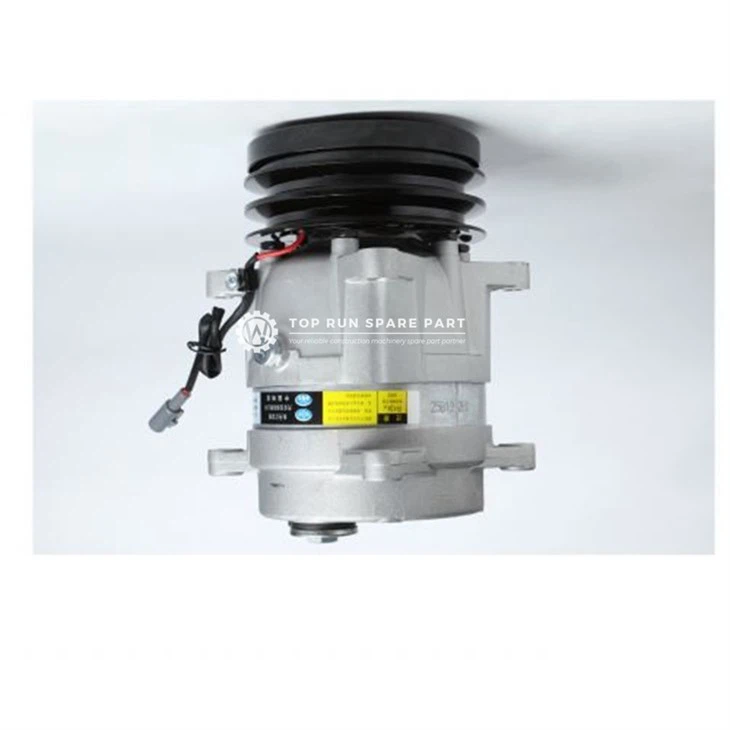
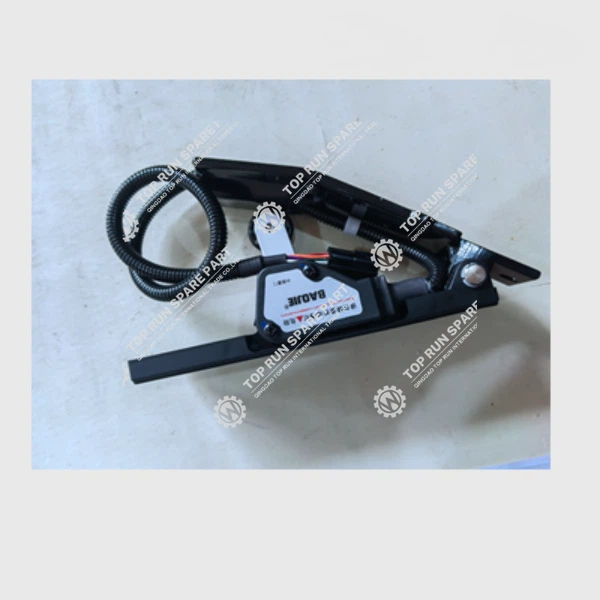
As a Crane Controller supplier, I also offer a range of related spare parts. For example, if you're looking for a Crane Compressor, we have high - quality options available. The Hydraulic Gear Pump 60004298 is another important spare part that can keep your crane's hydraulic system running smoothly. And if you need an Accelerator Pedal, we've got you covered.
Conclusion
Connecting devices to the communication port of a Crane Controller might seem a bit daunting at first, but with the right preparation and following the steps I've outlined, it can be a straightforward process. Remember to always prioritize safety, check for compatibility, and test the connection thoroughly.
If you have any questions about connecting devices to your Crane Controller or are interested in our spare parts, don't hesitate to reach out. We're here to help you ensure your crane operates at its best.
References
- Crane Controller User Manuals
- Industry Standards for Crane Communication Systems
Categories
QR Code


